How to build a blogging website for FREE
2025-04-09
Category: blogging-website
🛠️ How I Built My Own Blog Website Using Next.js and Markdown (No Paid Database!)
Welcome to a step-by-step breakdown of how I built a minimal, fast, and free blog website using Next.js, Markdown, and Vercel hosting.
🔧 Tech Stack Used
- Framework: Next.js
- Styling: CSS (Light theme)
- Markdown Parser:
gray-matter,remark,remark-html - Hosting: Vercel
- No Paid Database: Markdown files used as content source
📁 Step-by-Step Guide
1. Initialize the Next.js Project
npx create-next-app blog-website
cd blog-website
Clean the default files and start fresh.
2. Project Structure
blog-website/
├── pages/
│   ├── index.js
│   ├── blog.js
│   ├── [slug].js
│   └── _app.js
├── posts/                  ← Your markdown files go here
│   └── your-blog-post.md
├── public/images/          ← All blog-related images go here
│   └── blog-title/cover.png
├── styles/
│   └── globals.css         ← All custom CSS
├── .gitignore
├── package.json
3. Install Required Packages
npm install gray-matter remark remark-html
These allow parsing and rendering of markdown files as HTML.
4. Markdown File Format (.md)
Each blog post is a markdown file inside /posts:
---
title: "Learn System Design"
date: "2025-04-08"
category: "System Design"
description: "Introduction to system design with visuals."
---
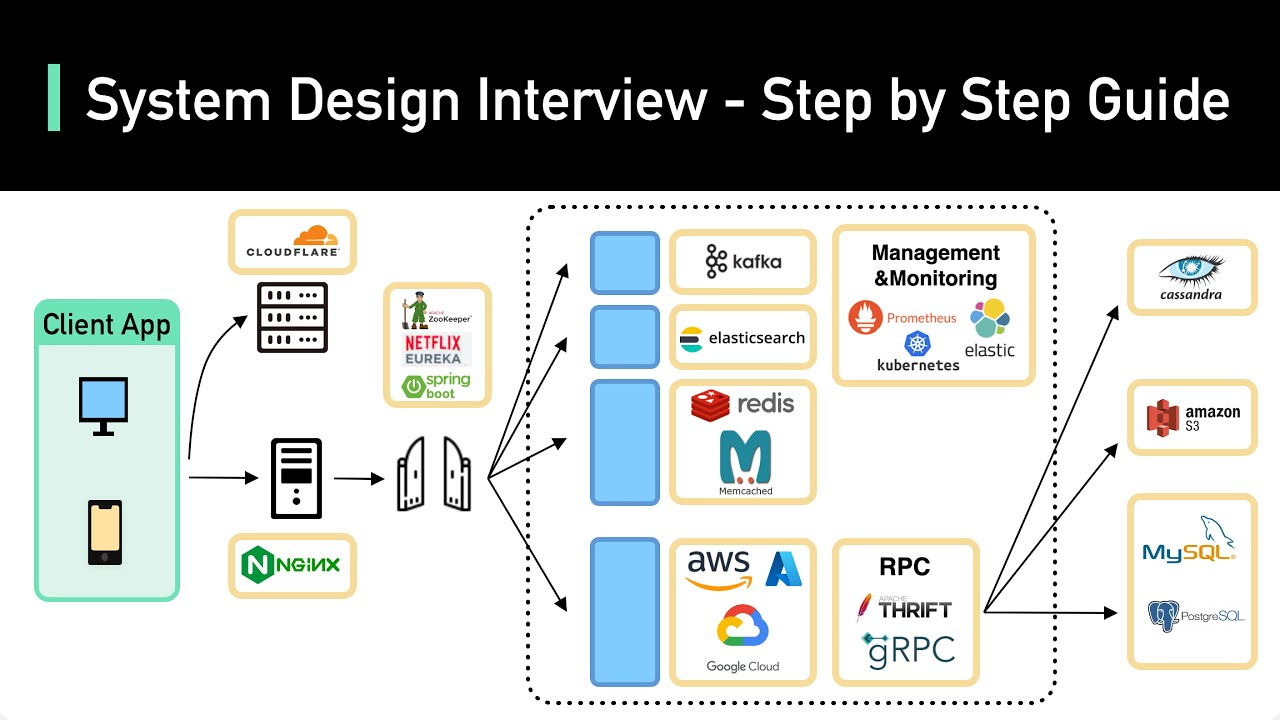
## Introduction
This is a sample post that explains basic system design...
## Architecture
Explain more sections here...
5. Rendering Blog Pages
pages/blog.js – List of All Posts
Use fs and path to read markdown from /posts, extract metadata with gray-matter, and list blog cards.
pages/[slug].js – Individual Blog Page
Use getStaticPaths and getStaticProps to generate individual pages at build time. Convert markdown to HTML using remark.
6. Styling With globals.css
Located in styles/globals.css, this file controls the global look — from headings to blog layout. I kept the design light, minimal, and AdSense-friendly.
To apply styles, import it in _app.js:
import '../styles/globals.css';
7. Add Images in Blog
Place all images in the public/images/ folder. Example:

This will be rendered as <img> and works great in markdown.
8. Deploy on Vercel
If you haven't already:
- Push your code to GitHub
- Go to vercel.com
- Import the GitHub repo
- Click Deploy
Done! 🚀
9. Extras
✅ .gitignore File
Make sure to ignore these:
node_modules/
.next/
.env
📝 Adding a Link in Markdown
Check out [Next.js](https://nextjs.org/) for more info.
🧠 Why This Setup?
- Free hosting on Vercel
- Fast static site generation
- Simple content editing (just edit a markdown file!)
- No database headaches
- SEO-friendly and AdSense-ready
🎯 Future Enhancements
- Add search functionality
- Add categories/tags page
- Enable comments using something like Giscus
- Add newsletter sign-up
- Support for dark mode
🙌 Final Thoughts
This was a fun and enriching project — perfect for developers who want a blogging platform that they fully control, without backend complexity or cost.
Feel free to fork my repo and build your own! 🔥
Article by — Analyst Sayan